You can group your products into collections to make it easier for customers to find them by category. Here are a few examples of collections that you might create:
- clothes for men, women, or children
- items of a certain type, such as lamps, cushions, or rugs
- items on sale
- items in a certain size or color
- seasonal products, such as holiday cards and decorations
After you create a collection, it can be shown on your online store as a webpage with a gallery of the products that are in the collection. Your customers can then click a product image on the collection page to visit a specific product's page. You can help customers find and view collections by adding links to the collections in a menu in your store's navigation.
The exact layout and appearance of collection pages depends on your theme.
Customize Collection Page by Sections
Steps
- From your Shopify admin, go to Product > Collection. Creat or Select a collection to assign template.
From your Shopify admin, go to Online Store > Themes
- Find the theme that you want to edit and click Customize
- From the top bar drop-down menu, select the type of page that you want to edit. Select Collection pages
Options:
There are 3 Static Section: Header (apply for all pages), Collection (collection detail), Product Listing, Newsletter , Footer (apply for all pages).
Collection pages
- Enable Mode View
- Enable Sort by
- Products per page: Set the number of products show on each collection page
- Products per row: Set the number of products each row.
- TOP BANNER
- Top Banner style:
- Same for all collection: You can use only one image as the feature image for all collection.
- Different image for each collection: You my use the theme assets image to show different image for each collection.
- Upload image: Upload the image use when you select Same for all collection above.
- Top Banner style:
COLLECTION FILTER
Filter position: Select position to display filter
- Sidebar
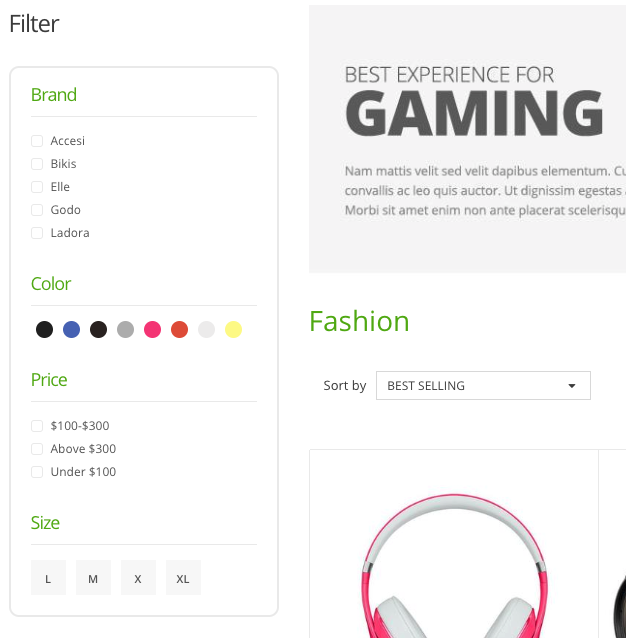
- Body
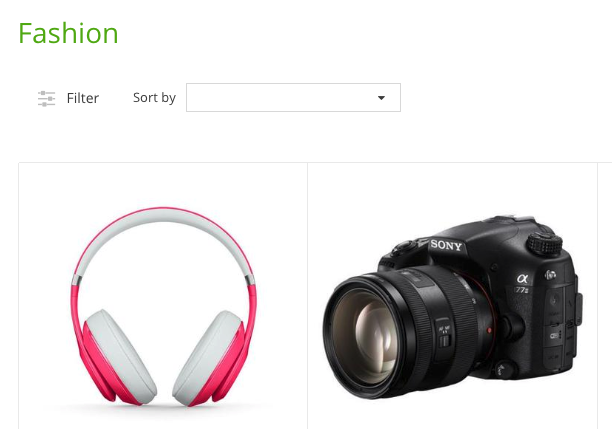
- None: Disable Filter
Filter sidebar style: When you select filter position at sidebar you may change style of the filter following 2 options
- Normal
- Accordion
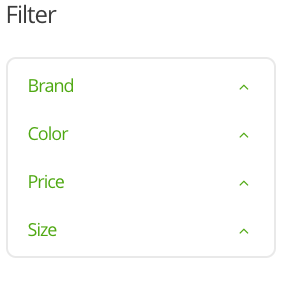
- Filter body and mobile style: When you select filter position at body, you may change style of the filter following 2 options:
- Toggle
- Drawer
- SIDEBAR PLACEMENT: Select your sidebar position on the page.
- Left
- Right
- None: Turn of the sidebar
- CONTENT: Setting block contents for SIDEBAR
- Theme Settings: Setting from this part will effect to the whole website.
CONTENT
There are 4 types of block content you may add to sidebar, you may change the position of content base on block position here.
* Filter: Filter for your Collection page
* Sidebar Collection Menu: Collection Nestest Navigation show at Sidebar.
* Sidebar Banner: Banner at sidebar
* Sidebar Product: Product featured as sidebar